Charles Proxy & Fiddler Everywhere
A debugging proxy sits between an app (a browser, a mobile app, a desktop client) and the server. Every HTTP(S) request passes through it, so you can watch, pause, edit, replay, redirect or slow down traffic. You don't have to change the app or the backend. Unlike DevTools, a proxy also sees traffic from mobile apps and devices, which is why mobile and integration testers rely on it. This chapter teaches Charles step by step, maps the same tasks to Fiddler Everywhere, and ends with a translation table for Proxyman and mitmproxy.
| Key fact | Charles | Fiddler Everywhere |
|---|---|---|
| Platforms | Windows, macOS, Linux | Windows, macOS, Linux |
| License | Paid, with a free trial | Paid subscription, with a trial |
| Default proxy port | 8888 | 8866 (check Settings → Connections) |
| HTTPS | SSL Proxying + Charles Root Certificate | Settings → HTTPS → Trust Fiddler CA |
| Editing traffic | Breakpoints, Rewrite, Map Local / Remote | Rules (conditions + actions), breakpoints |
App / phone → (proxy settings host:port) → Charles or Fiddler → server
                       ↑ root certificate trusted on the client lets the proxy decrypt HTTPS
Inside the proxy: record → inspect → breakpoint / rewrite / map / throttle → forward
How a debugging proxy sees your traffic
- The proxy listens on a local port, such as
8888for Charles. - The client is told to use that proxy. The proxy can configure the OS or browser automatically (Charles: Proxy → macOS Proxy or Proxy → Windows Proxy), or you set it by hand on a phone's Wi-Fi.
- For plain HTTP, the proxy can read everything right away.
- For HTTPS, the proxy acts as a "man in the middle". It creates a certificate for each site and signs it with its own root certificate. The client accepts this only if you install and trust that root certificate.
- Without trust you see only
CONNECT host:443tunnels. With trust and SSL proxying enabled, you see full requests and responses.
Caveat: Apps that use certificate pinning reject the proxy's certificate even when it's trusted. Expect a connection error. Ask developers for a debug build with pinning disabled, rather than trying to bypass it. Only intercept traffic you're authorized to test, and remove the root certificate when you're done.
Charles: record traffic and enable SSL Proxying
- Install Charles from charlesproxy.com and start it. Allow it to change the system proxy settings when asked.
- Check that recording is on: the red record button in the toolbar, or Proxy → Start Recording.
- Browse to the site under test. Requests appear in the Structure view (grouped by host) and the Sequence view (chronological list).
- Install the root certificate: Help → SSL Proxying → Install Charles Root Certificate. On macOS, Keychain Access opens: double-click the Charles Proxy CA entry, expand Trust, and set When using this certificate to Always Trust. On Windows, click Install Certificate and place it in Trusted Root Certification Authorities.
- Enable decryption for the hosts you test: Proxy → SSL Proxying Settings… → SSL Proxying tab → tick Enable SSL Proxying → Add → Host
api.example.test, Port443. Alternatively, right-click a host in Structure → Enable SSL Proxying. - Reload the app. Select a request and switch between Overview, Contents (request and response with JSON, headers and raw views) and Summary.
QA tip: Right-click the host under test → Focus. Other hosts collapse into an Other Hosts folder, which makes long sessions readable. File → Save Session keeps a .chls file you can attach to a bug.Charles: capture an iPhone, Android device or simulator
Phone on the same Wi-Fi network
- In Charles, open Help → SSL Proxying → Install Charles Root Certificate on a Mobile Device or Remote Browser. The dialog shows your computer's IP address and the port (
8888). - On the phone, open the Wi-Fi network settings → Configure Proxy → Manual. Enter the computer's IP address as the server and
8888as the port. - Charles shows a prompt to allow the new device. Click Allow.
- On the phone, open a browser and go to
chls.pro/sslto download the certificate. - iOS: install the downloaded profile in Settings → General → VPN & Device Management. Then turn on full trust in Settings → General → About → Certificate Trust Settings.
- Android: install it as a CA certificate in the security settings (the exact path differs by vendor, for example Settings → Security → Encryption & credentials → Install a certificate → CA certificate).
Android 7+ apps ignore user-installed certificates by default. A debug build of the app must opt in. Developers add a network security config like this, and reference it with android:networkSecurityConfig="@xml/network_security_config" on the <application> element:
<!-- res/xml/network_security_config.xml : trusts user CAs in debug builds only -->
<network-security-config>
  <debug-overrides>
    <trust-anchors>
      <certificates src="user" />
    </trust-anchors>
  </debug-overrides>
</network-security-config>
Simulators: quit the iOS Simulator, choose Help → SSL Proxying → Install Charles Root Certificate in iOS Simulators, then start it again. For the Android emulator, set the proxy in the emulator's Extended controls → Settings → Proxy.
Caveat: Turn the phone's proxy back off after testing. Otherwise the phone loses internet access as soon as Charles is closed.
Charles: Breakpoints to edit a live request or response
Breakpoints pause one request or response so you can change it by hand. Use them for one-off cases such as "what does the app do if price is negative?"
- Right-click the request in Structure or Sequence → Breakpoints. To manage the list, open Proxy → Breakpoint Settings….
- Trigger the request in the app. The Breakpoints tab opens with the intercepted request.
- Open Edit Request to change the URL, headers or body, then click Execute to send it on.
- When the response arrives, Charles pauses again. Open Edit Response to change the status line (for example
200 OK→500 Internal Server Error), headers or JSON body, then click Execute. - Click Abort instead to block the call: Charles sends an error to the client, which is a quick way to test error handling. Cancel discards your edits and lets the call continue unchanged.
- Turn breakpoints off with the hexagon button in the toolbar or Proxy → Disable Breakpoints.
QA tip: Apps have timeouts. If you take too long editing a paused request, the app may give up first. That's a useful test of its own, but don't confuse it with the bug you were investigating.
Charles: Map Local, Map Remote and Rewrite
Use these when the same change must happen every time, without manual editing.
Map Local returns a file from your computer instead of the server response:
- Save a real response first: select the request → Contents → Response → right-click → Save Response….
- Edit the saved JSON to create your scenario: an empty list, a missing field, a 10,000-character name.
- Right-click the request → Map Local…. The host and path are prefilled. Click Choose and select your file.
- Check that Tools → Map Local… → Enable Map Local is ticked, then repeat the action in the app.
Map Remote sends requests for one host or path to another server. For example, point a production mobile build's api.example.com at api-stage.example.com, or at a developer's machine. Open Tools → Map Remote…, tick Enable Map Remote, then click Add and fill in the Map From and Map To locations.
Rewrite applies find-and-replace rules on the fly:
- Open Tools → Rewrite… and tick Enable Rewrite.
- Click Add under Sets to create a set, then Add under Locations to choose the host and path it applies to.
- Under Rules, click Add and choose a type. Charles groups rule types into four categories: header rules (add, modify or remove a header), query parameter rules, URL rules and body rules. Each rule applies to the request, the response or both, and can use regular expressions.
- Use rules for things like adding
X-Feature-Flag: new-checkout, removingCache-Control, or turning every"isPremium":falseinto"isPremium":true.
Caveat: Forgotten mappings and rewrites cause false bugs later. Name rule sets clearly, keep only the ones you're using enabled, and export them with Tools → Import/Export Settings if the team needs to share them.
Charles: Throttling slow and lossy networks
- Open Proxy → Throttle Settings… and tick Enable Throttling.
- Pick a preset such as 3G or 56 kbps Modem, or enter your own bandwidth and latency.
- Optionally adjust Utilisation, Round-trip latency, Reliability and Stability to simulate unstable mobile networks.
- Tick Only for selected hosts and add the API host, so the rest of your system stays fast.
- Toggle throttling quickly with the turtle button in the toolbar.
Typical checks: spinners and skeleton screens appear, buttons can't be double-submitted, timeouts show a clear message, retries don't create duplicate orders, and large images degrade gracefully.
Fiddler Everywhere: HTTPS capture and Rules
Fiddler Everywhere is Telerik's current cross-platform proxy. It replaces the Windows-only Fiddler Classic for new work.
- Install and sign in, then open Settings → HTTPS and click Trust Fiddler CA. On Linux you have to export and trust the CA by hand.
- Tick Capture HTTPS traffic. It's off by default and needs the trusted CA.
- Start capturing: system capture, the independent browser capture, terminal capture, or an explicit proxy for devices.
- Sessions appear in the Live Traffic grid. Select one and use the Inspectors to read request and response headers, body and timing.
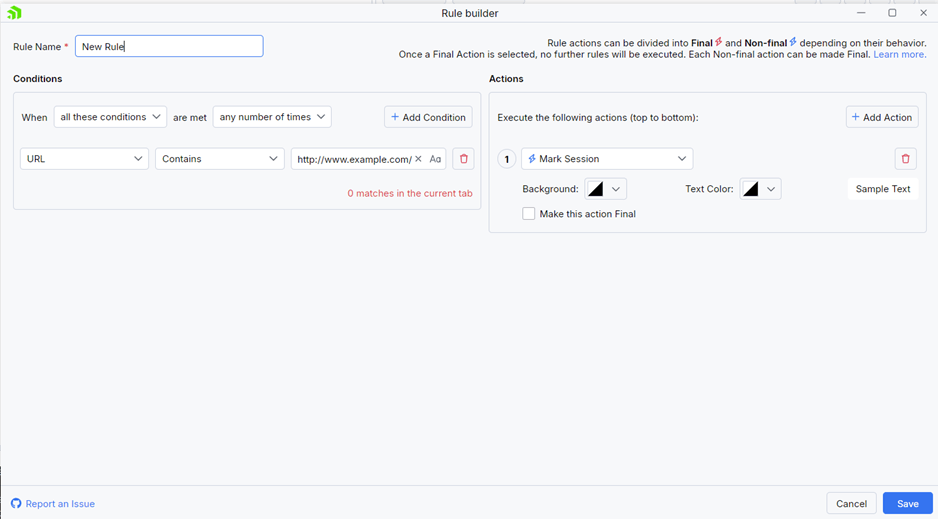
- To modify traffic, open the Rules tab and click Add Rule. The Rule Builder opens.
- Give the rule a name, add conditions (for example URL contains `/api/orders`), add actions (for example return a manual response, change the body or headers, or set a breakpoint), and click Save.
- Make sure the main Rules switch is on. New rules go to the top of the list and run first.
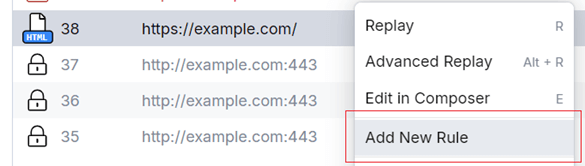
- Shortcut: right-click a captured session → Add New Rule. The Rule Builder opens prefilled with that session.
Caveat: Ignore server certificate errors in the HTTPS settings is for specific test endpoints only. Turning it on for everything hides real certificate problems and exposes you to spoofing while you browse.
Same task, different proxy: Charles, Fiddler, Proxyman, mitmproxy
| Task | Charles | Fiddler Everywhere | Proxyman | mitmproxy |
|---|---|---|---|---|
| Decrypt HTTPS | SSL Proxying Settings + root cert | Settings → HTTPS → Trust CA | Certificate menu | mitm.it certificate page |
| Pause and edit | Breakpoints | Rule action: breakpoint | Breakpoint tool | Intercept filter (i) |
| Serve a local file | Map Local | Rule action: manual response | Map Local | Python addon script |
| Redirect environment | Map Remote | Rule: redirect | Map Remote | --map-remote option |
| Automatic edits | Rewrite | Rules | Scripting | Python addons |
| Default port | 8888 | 8866 | 9090 | 8080 |
mitmproxy is free and open source. Start mitmproxy (terminal UI) or mitmweb (browser UI), point the client at localhost:8080, and open http://mitm.it through the proxy to install its certificate. It's the best choice when you want to script changes in Python or run interception in CI.
Cheat sheet
| Task | Charles |
|---|---|
| Start / stop recording | Toolbar record button |
| Set the system proxy | Proxy → macOS Proxy / Windows Proxy |
| Trust HTTPS | Help → SSL Proxying → Install Charles Root Certificate |
| Decrypt a host | Proxy → SSL Proxying Settings → Add host:443 |
| Phone setup | Wi-Fi proxy = computer IP:8888, then chls.pro/ssl |
| Edit one call | Right-click → Breakpoints |
| Fake response from a file | Right-click → Map Local |
| Point the app at stage | Tools → Map Remote |
| Automatic header or body edits | Tools → Rewrite |
| Slow network | Proxy → Throttle Settings |
| Save evidence | File → Save Session (.chls) |
Summary
- A proxy sees traffic from any client, including mobile apps. HTTPS needs a trusted root certificate plus SSL proxying enabled for the host.
- Breakpoints are for one-off manual edits. Map Local, Map Remote and Rewrite are for repeatable mocks, environment switching and automatic changes.
- Throttling, limited to the API host, reproduces slow-network bugs such as double submits, missing spinners and timeouts.
- Fiddler Everywhere does the same work with Rules. Proxyman and mitmproxy use different names for the same ideas. Always remove certificates, proxy settings and forgotten rules after testing.