DBeaver
DBeaver is a universal database client. One app connects to PostgreSQL, MySQL/MariaDB, SQL Server, Oracle, SQLite, ClickHouse and dozens of other databases through JDBC drivers. QA engineers use it to answer one question: does the stored data agree with what the API and UI claim? It's also where an accidental UPDATE without a WHERE can do real damage, so this chapter starts the safety settings early.
| Key fact | Details |
|---|---|
| Editions | Community Edition (free, open source) and paid Lite / Enterprise / Ultimate editions |
| Platforms | Windows, macOS, Linux |
| Best for | Verifying persisted state, preparing test data, reading execution plans, exporting evidence |
| Shortcuts below | Windows/Linux. On macOS use Cmd instead of Ctrl |
Create the connection (right driver, right environment) → set the connection type (Production = manual commit + confirmations) → SELECT with precise WHERE + LIMIT → compare with API/UI evidence → (test DB only) change data inside a transaction → commit or roll back → export the evidenceCreating a connection: driver, host, credentials and Test Connection
- Click New Database Connection (the plug icon with a plus, or Database → New Database Connection,
Ctrl+Shift+N). - Choose the database type, such as PostgreSQL, and click Next.
- On the Main tab enter Host, Port (PostgreSQL
5432, MySQL3306, SQL Server1433), Database, Username and Password. - Click Test Connection…. The first time, DBeaver offers to download the driver files. Accept.
- Use the SSH tab if the database is reachable only through a bastion host, and the SSL tab if the server requires TLS.
- Click Finish. The connection appears in Database Navigator. Expand it to browse schemas, tables, views and functions.
QA tip: Put the environment in the connection name, for example orders-db STAGE (read-only). Five similar connections in the Navigator are an accident waiting to happen.Safe by default: connection types, manual commit and read-only
Connection types decide how careful DBeaver is. There are three built-in types:
| Setting | Development | Test | Production |
|---|---|---|---|
| Auto-commit | On | On | Off |
| Confirm SQL execution | Off | Off | On |
| Confirm data changes | Off | On | On |
| Colour in the UI | White | Olive green | Brick red |
New connections are Development by default. To change it:
- Select the connection in Database Navigator and press
F4(or right-click → Edit Connection). - Go to General and set Connection type to Production for anything shared or live.
- In the same General page, tick Read-only connection when you only need to look. DBeaver then refuses data-changing statements on that connection.
- Click OK. The connection, its editors and tabs are now coloured, so you can always see where you are.
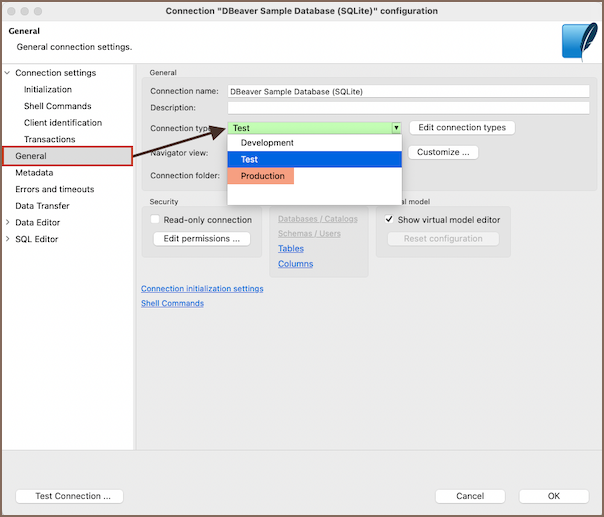
Manual commit mode makes every change a transaction that you must finish yourself:
- Use the transaction mode button in the main toolbar to switch from Auto-Commit to Manual Commit.
- Run your
INSERT/UPDATE/DELETE. DBeaver shows a counter of pending statements. - Check the result with a
SELECTin the same editor. - Click Commit to keep the changes or Rollback to undo them.
Caveat: Even on a read-only connection, a heavySELECTwithout aLIMITon a large production table can slow the database for everyone. Filter by an indexed column and limit the rows.
SQL editor: run statements, scripts and parameters
- Select the connection and choose SQL Editor → New SQL Editor in the main menu, or press
F3and click New Script. Saved scripts appear in the Scripts folder of the Project Explorer. - Check the active connection and schema in the main toolbar before you run anything.
Ctrl+9switches the connection andCtrl+0switches the schema. - Put the cursor inside a statement and press
Ctrl+Enterto run only that statement. Select several lines first to run just the selection. - Press
Alt+Xto run the whole script. Each result opens in its own tab, and Statistics summarises the run. - Press
Ctrl+\to run a statement into a new results tab and keep the previous result for comparison. - Use named parameters such as
:order_id. When you run the query, DBeaver opens a Bind parameter(s) window to enter the values. Variables set with@set id = 42can be used as${id}.
Run the query to see the result.
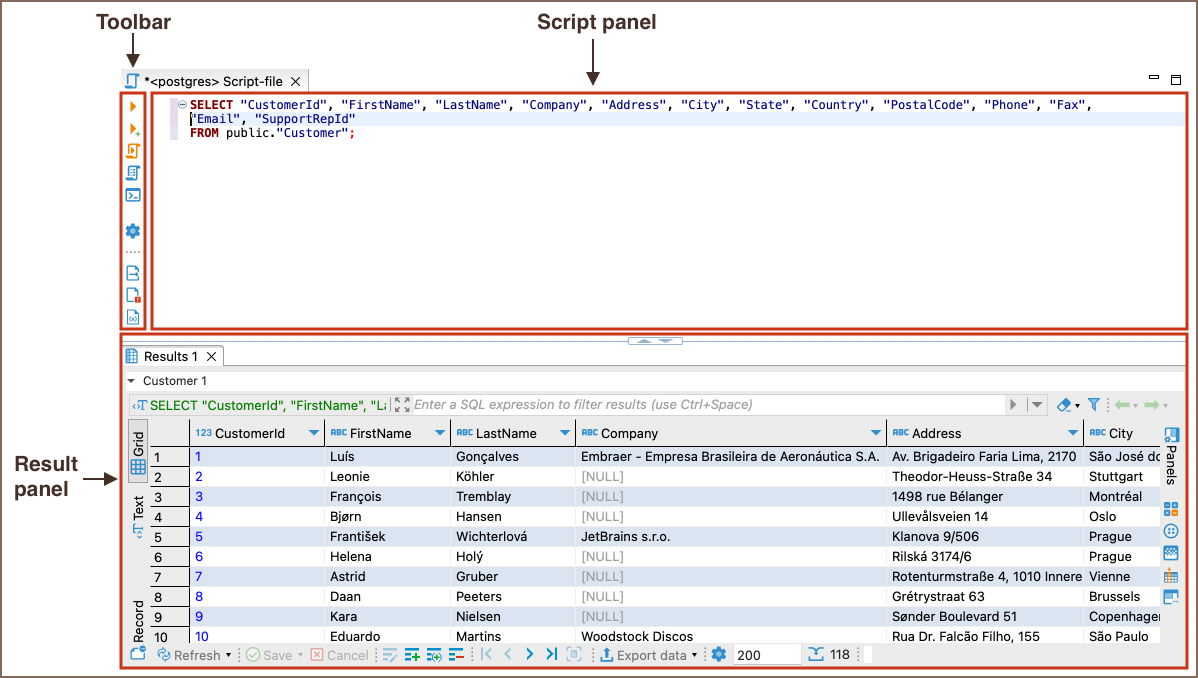
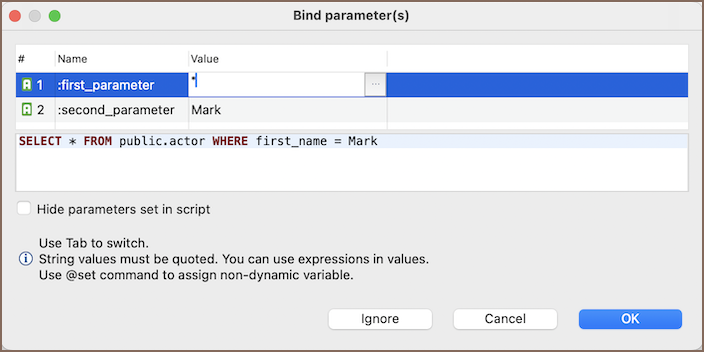
Data editor: filter, sort, compare and edit rows
Double-click a table in Database Navigator and open the Data tab, or use the results grid of any query.
- Type a condition in the filter box above the grid, for example
status = 'FAILED' AND created_at > '2026-11-01', and pressEnter. It works like aWHEREclause without writing a query. - Click a column header to sort, or use the funnel icon in the header to filter by a value.
- Select a cell and open the value panel to read long text or JSON comfortably.
- Switch between Grid and Text view (left side of the results) when you want to copy a plain-text table.
- To edit (test databases only!), double-click a cell, change the value, and click Save at the bottom. With Confirm data changes on, DBeaver shows the generated SQL first.
- Use Advanced Copy (
Ctrl+Shift+C) to copy selected rows together with the column names, ready to paste into a bug report or spreadsheet.
QA tip: Check the timestamps as well as the values:created_at,updated_atand their time zone. "Saved with the wrong status" and "saved with the right status, then overwritten by a background job" are different bugs.
Execution plans, ER diagrams and exporting evidence
Execution plan (why is this query or endpoint slow?):
- Place the cursor in a query and press
Ctrl+Shift+E, or click Explain execution plan in the editor toolbar. - DBeaver shows the plan tree as a result tab. Look for sequential/full scans on large tables and very high cost or row estimates.
- Click a node to see its details. Attach the plan when you report a slow endpoint, because developers will ask for it.
ER diagram: open a table and switch to the ER Diagram tab, or right-click a schema → View Diagram, to see foreign keys and relationships. This helps you write correct joins and spot missing constraints, such as an order that can exist without a customer.
Export results:
- Right-click the query → Execute → Export From Query, or right-click a result grid → Export data….
- Choose a format: CSV, JSON, XLSX, SQL INSERT statements, Markdown and others.
- Follow the Data transfer wizard (file name, encoding, which columns), then click Proceed.
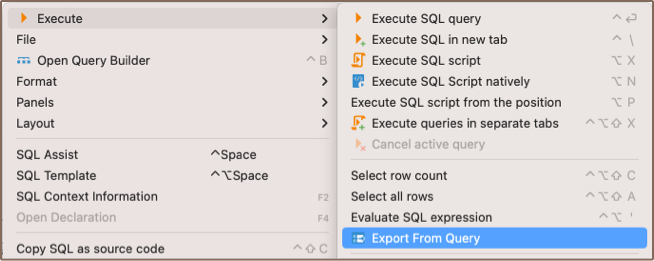
Caveat: Exports often contain personal data: emails, names, addresses, phone numbers. Mask or remove those columns before you attach a file to a ticket.
Cheat sheet
| Task | How |
|---|---|
| New connection | Ctrl+Shift+N → choose driver → Test Connection |
| Edit connection settings | Select it → F4 |
| Make a connection safe | F4 → General → Connection type Production and/or Read-only connection |
| Manual transactions | Toolbar → Manual Commit, then Commit / Rollback |
| New SQL script | SQL Editor → New SQL Editor, or F3 → New Script |
| Switch connection / schema | Ctrl+9 / Ctrl+0 |
| Run statement under cursor | Ctrl+Enter |
| Run whole script | Alt+X |
| Result in a new tab | Ctrl+\ |
| Explain plan | Ctrl+Shift+E |
| Quick WHERE on a table | Filter box above the data grid |
| Copy with headers | Ctrl+Shift+C (Advanced Copy) |
| Export | Execute → Export From Query |
Summary
- Name connections after the environment, and set shared or live ones to the Production connection type (manual commit plus confirmations), or make them read-only.
- Run precise
SELECTstatements withCtrl+Enter, use:parametersfor reusable checks, and compare database state with what the API and UI reported. - On test databases, change data inside a manual transaction and commit or roll back on purpose.
- Use execution plans for slow endpoints and ER diagrams for relationships, and export results without personal data.